Logrotate is a fundamental tool on any Linux system that automates log file management. Without proper rotation, logs can fill up disk space, degrade performance, and make troubleshooting difficult.
In this post, I’ll explain how to configure and use logrotate to keep your logs under control, with practical examples for NGINX, Docker, custom applications, and more.
⚠️ DISCLAIMER: Please note that this article is a manual translation of the Spanish version. The screenshots may have been originally taken in Spanish, and some words/names may not match completely. If you find any errors, please report them to the author. ⚠️
Requirements
- Linux system. Throughout this post I’ll use Debian, if you use another distribution, adapt the commands to your package manager.
- Access as
rootor viasudo/doas. In my case, I’ll do it asroot(usingsu). - (Optional) Services generating logs like NGINX, Docker, Apache, etc.
Things to keep in mind
-
Logrotate normally runs once a day. On modern systems with
systemd, this is managed via a timer (logrotate.timer), although if your system doesn’t havesystemd, it may usecronand be managed in the/etc/cron.daily/logrotatefile. In fact, if we check thecronscript content, we’ll see that if it detectssystemdis present, it does nothing (exit 0):cat /etc/cron.daily/logrotate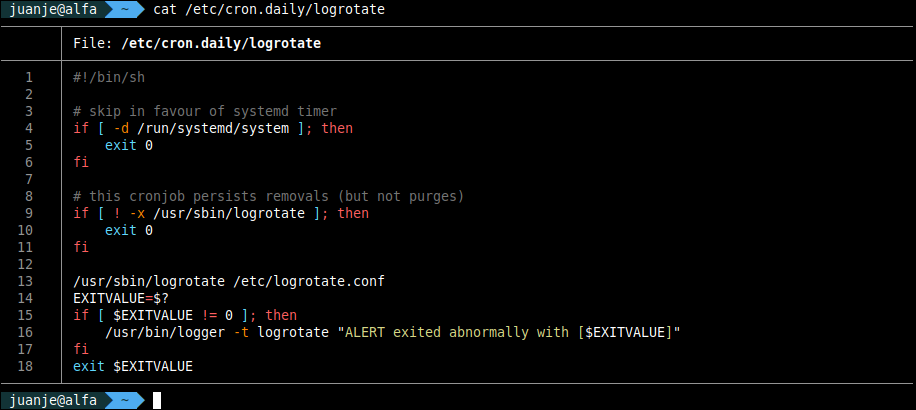
On the other hand, the
systemdtimer is located at/usr/lib/systemd/system/logrotate.timerand we can see its configuration with:cat /usr/lib/systemd/system/logrotate.timer[Unit] Description=Daily rotation of log files Documentation=man:logrotate(8) man:logrotate.conf(5) [Timer] OnCalendar=daily RandomizedDelaySec=1h Persistent=true [Install] WantedBy=timers.target -
It’s essential to test configurations before applying them using debug mode (
-d). -
Be careful with permissions of rotated files.
What is logrotate?
Logrotate is a system utility designed to simplify log file administration. It allows automatic rotation, compression, removal, and mailing of logs, and as if that weren’t enough, we can also execute custom commands and scripts before and after rotation.
How does it work?
- Runs recurrently via systemd timers (
logrotate.timer) or cron jobs (/etc/cron.daily/logrotate). - Reads configurations from
/etc/logrotate.confand/etc/logrotate.d/. - Applies the rules defined for each file or set of files.
- Executes commands and scripts pre and post-rotation if configured.
- Records state in
/var/lib/logrotate/status.
Advantages:
- Space savings: Compresses old logs and removes very old ones (as we configure it)
- Prevention: Prevents the disk from filling up due to uncontrolled logs
- Automation: Everything happens without manual intervention
Installation
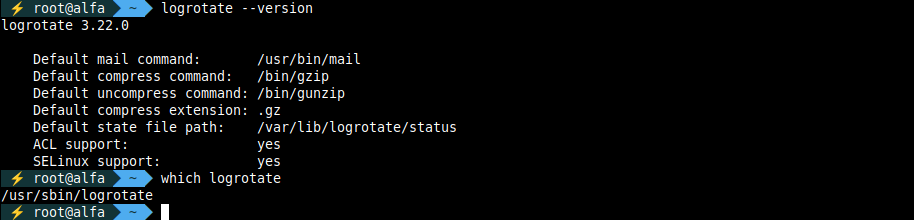
Logrotate comes preinstalled on most current Linux distributions, but we can verify its existence and version with:
su -

# May fail if not run as root
logrotate --version
You can also verify its location:
which logrotate
Expected output:
If for some reason you don’t have it installed:
apt update

apt install logrotate
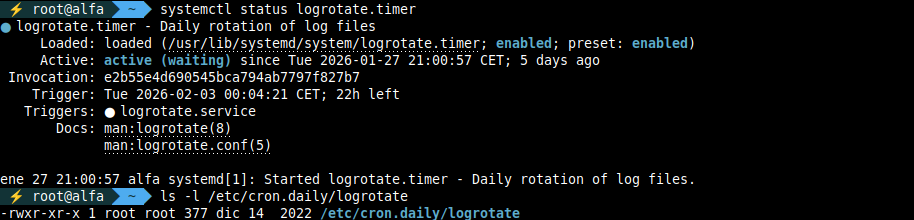
Verify that the timer or cron is active:
# On systems with systemd
systemctl status logrotate.timer

# Or check the cron script
ls -l /etc/cron.daily/logrotate
File structure
Logrotate uses a hierarchical configuration structure:
Main files:
-
/etc/logrotate.conf- System-wide global configuration -
/etc/logrotate.d/- Directory with service-specific configurations -
/var/lib/logrotate/status- State file that records when each log was last rotated: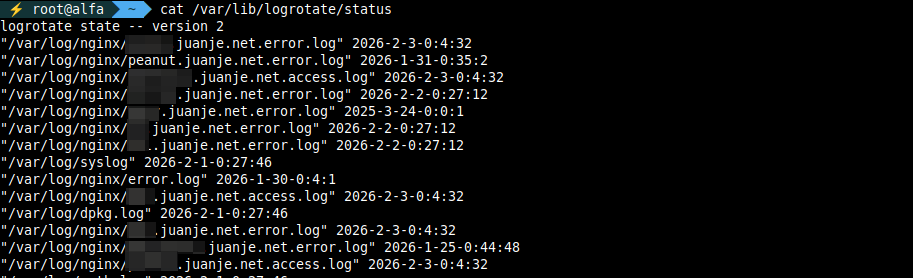
Directories:
/etc/
├── logrotate.conf          # Global configuration
├── logrotate.d/            # Per-service configurations
│   ├── alternatives
│   ├── apt
│   ├── dpkg
│   ├── nginx               # NGINX configuration
│   ├── rsyslog
│   └── ...
└── cron.daily/
    └── logrotate           # Script that runs logrotate daily when using cron instead of systemd timers

/var/lib/logrotate/
└── status                  # Rotation state
Order of precedence: Service configurations in /etc/logrotate.d/ take priority over global directives in /etc/logrotate.conf.
Configuration directives
Logrotate has a large number of directives to customize its behavior that can be consulted in the manual (man logrotate). Here I list the most common ones, but don’t forget to check the manual to take full advantage of its potential:
| Directive | Description |
|---|---|
daily, weekly, monthly, yearly |
Rotation frequency |
rotate N |
Number of rotated files to keep |
compress |
Compress old logs |
delaycompress |
Don’t compress the first rotated log, useful for easy consultation |
size N |
Rotate when file reaches size (e.g., size 100M) |
maxsize N |
Rotate if size exceeded, regardless of time |
missingok |
Don’t generate error if log doesn’t exist |
notifempty |
Don’t rotate if file is empty |
create mode owner group |
Create new log with specific permissions |
copytruncate |
First makes a copy of the log with a new name, then empties the original to prevent the process writing to the log from losing reference to the original file |
dateext |
Add date instead of number to rotated log name |
dateformat |
Date format (default: -%Y%m%d) |
maxage N |
Delete logs older than N days |
sharedscripts |
Execute pre/postrotate commands and scripts once instead of once per file |
prerotate ... endscript |
Script to execute before rotating logs |
postrotate ... endscript |
Script to execute after rotating logs |
The recommended way to configure logrotate is through files in /etc/logrotate.d/. This makes it easier to manage.
Configuration examples
Suppose you have an application that generates logs in /var/log/myapp/, and you want to rotate them daily, keeping 7 days of compressed logs but without compressing yesterday’s log so you can consult it quickly.
You would start by creating a configuration file for logrotate to manage those logs:
nano -cl /etc/logrotate.d/myapp
Content:
/var/log/myapp/*.log {
    daily
    rotate 7
    compress
    delaycompress
    notifempty
    missingok
    create 0640 juanje admins
    sharedscripts
    prerotate
        # Commands before rotation
    endscript
    postrotate
        # Commands after rotation
    endscript
}
/var/log/myapp/*.log: Applies to all.logfiles in/var/log/myapp/directorydaily: Rotate every dayrotate 7: Keep 7 log rotationscompress: Compress old logsdelaycompress: Don’t compress yesterday’s log (useful if someone needs to consult it)notifempty: Don’t rotate empty filesmissingok: Don’t fail if file doesn’t existcreate 0640 juanje admins: Create new file with 0640 permissions, owner juanje and group adminssharedscripts: Execute scripts once per rotation instead of once per fileprerotateandpostrotate: Spaces for custom commands or scripts before and after rotation
The rotations would generate files like:
/var/log/myapp/
├── myapp.log       # Current log
├── myapp.log.1     # Yesterday's log (uncompressed)
├── myapp.log.2.gz  # Log from 2 days ago (compressed)
├── ...
└── myapp.log.7.gz  # Log from 7 days ago (compressed)
It’s also possible to specify different configurations for different log files within the same configuration file:
/var/log/myapp/access.log
/var/log/myapp/error.log
/var/log/myapp/debug.log
{
    daily
    rotate 14
    compress
    delaycompress
    notifempty
    missingok
    create 0640 juanje admins
}

/var/log/myapp/transactions.log
{
    weekly
    rotate 4
    compress
    delaycompress
    notifempty
    missingok
    create 0640 juanje admins
}
A real example is the default configuration that NGINX has for rotating its logs, which can be found in /etc/logrotate.d/nginx:
/var/log/nginx/*.log {
    daily
    missingok
    rotate 14
    compress
    delaycompress
    notifempty
    create 0640 www-data adm
    sharedscripts
    prerotate
        if [ -d /etc/logrotate.d/httpd-prerotate ]; then \
            run-parts /etc/logrotate.d/httpd-prerotate; \
        fi \
    endscript
    postrotate
        invoke-rc.d nginx rotate >/dev/null 2>&1
    endscript
}
In this case, before rotating the logs, prerotate will invoke run-parts, which will execute any script found in the /etc/logrotate.d/httpd-prerotate directory.
After rotation, postrotate will reload NGINX so it starts writing to the new log files.
Testing the configuration
We should always test our configurations before applying them. To do this, we can run logrotate with the -d (debug) parameter which simulates the rotation without making real changes:
# Test global configuration
logrotate -d /etc/logrotate.conf

# Test specific configuration
logrotate -d /etc/logrotate.d/nginx
Output:
warning: logrotate in debug mode does nothing except printing debug messages!  Consider using verbose mode (-v) instead if this is not what you want.

reading config file /etc/logrotate.conf
including /etc/logrotate.d
reading config file alternatives
reading config file apt
...
reading config file rsyslog
Reading state from file: /var/lib/logrotate/status
Allocating hash table for state file, size 64 entries
Creating new state
...

Handling 12 logs

rotating pattern: /var/log/alternatives.log monthly empty log files are not rotated, (12 rotations), old logs are removed
considering log /var/log/alternatives.log
  Now: 2026-02-03 02:28
  Last rotated at 2026-02-02 01:52
  log does not need rotating (log has been rotated at 2026-02-02 01:52, which is less than a month ago)
...
Forcing rotation
On the other hand, to force immediate rotation, we’ll use the -f (force) parameter:
# Force all logs
logrotate -f /etc/logrotate.conf

# Force specific configuration
logrotate -f /etc/logrotate.d/nginx

Despite not generating output, we can see that its exit code is 0, indicating it executed successfully.
Conclusion
Logrotate is an essential tool for any Linux system administrator that will save you many headaches by automating the lifecycle of your log files.
And even though it’s configured by default in most distributions, it never hurts to learn how to modify and adapt its configuration files to the needs of our infrastructure.
References
- man logrotate - Official logrotate manual